Physical Address
304 North Cardinal St.
Dorchester Center, MA 02124
Physical Address
304 North Cardinal St.
Dorchester Center, MA 02124


Get hands-on with Adobe’s Edge Delivery Services and Universal Editor through a free 30-day trial. Learn how to modify themes via GitHub and edit content with a true WYSIWYG experience—no enterprise license required.
Adobe has launched a pre-configured environment that allows any developer or authors to explore Edge Delivery Services (EDS) and the Universal Editor (UE) without an enterprise license. This 30-day trial removes the standard licensing and configuration barriers, enabling you to jump directly into hands-on practice and significantly speed up your learning curve.
To get started, visit the AEM.live Trial page. The process is straightforward, you need to provide the following
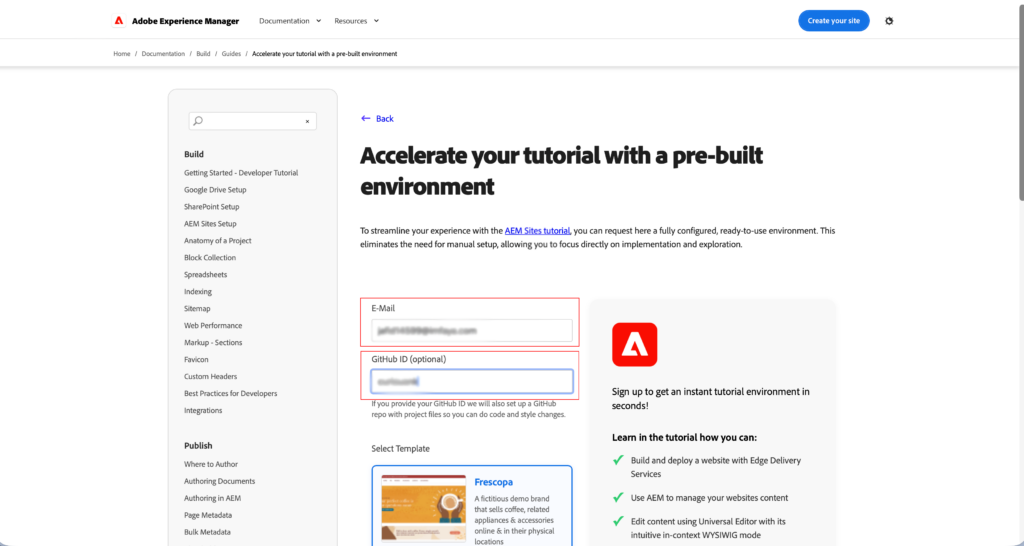
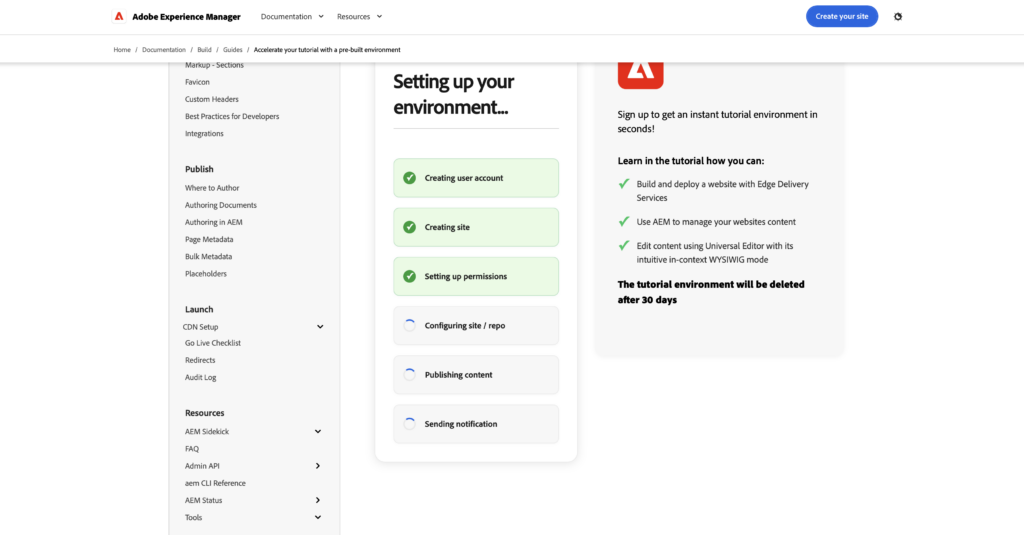
The setup process takes only a few minutes. You can watch the progress flow on your screen as Adobe provisions your AEM instance and forks your code.
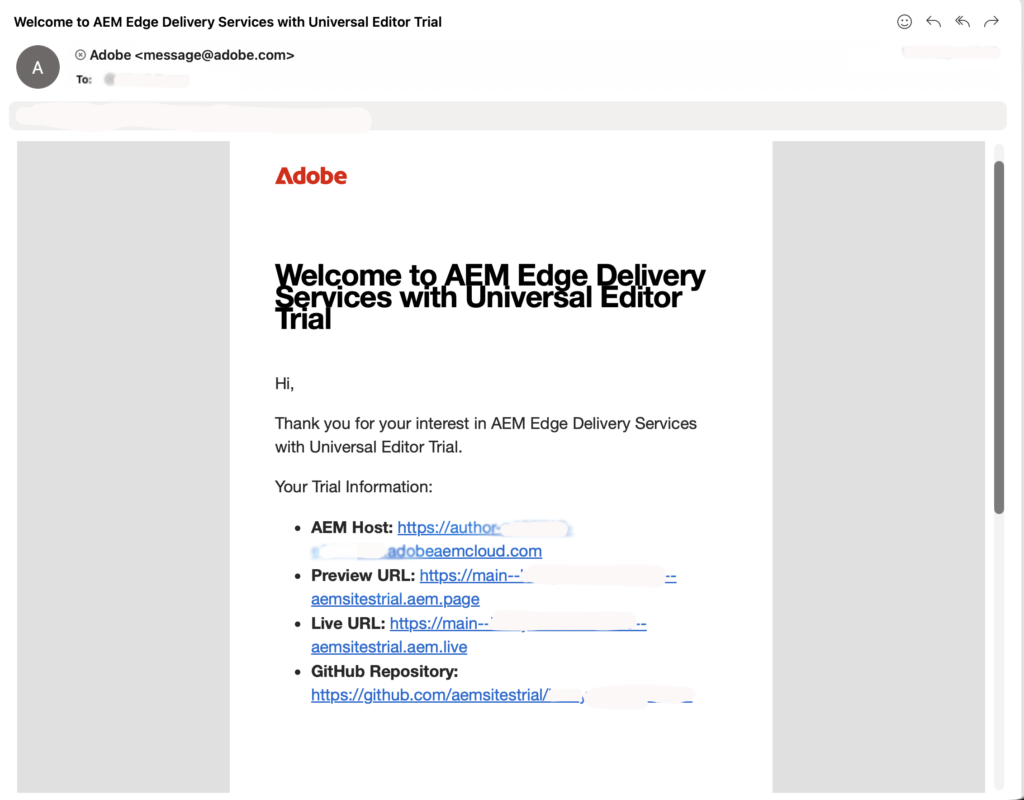
Once the process is complete, you will receive an automated email with the specific credentials for your trial environment.
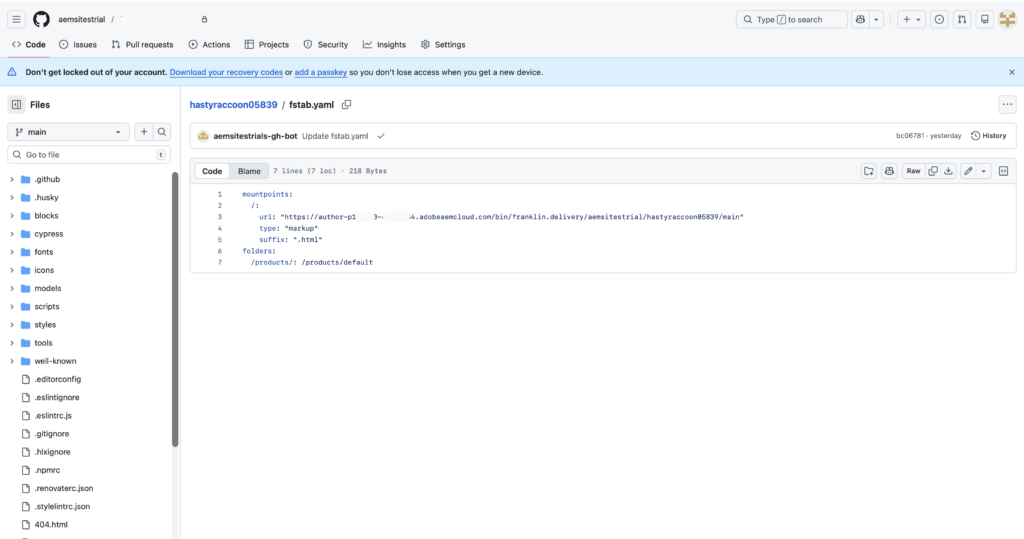
To confirm the wiring navigate to the newly create repo, and open fstab.yaml file listed at the root.
One of the core features of EDS is that the design is code-driven. You can change the entire look of your site by modifying the CSS in your GitHub repository.
Let’s see this with an example. We are going to change the button color on the product card. Navigate to the home page and inspect the element to find the CSS selector you want to use to apply the styles. This step is important because you need to be specific when applying CSS changes so they don’t impact other parts of the website.
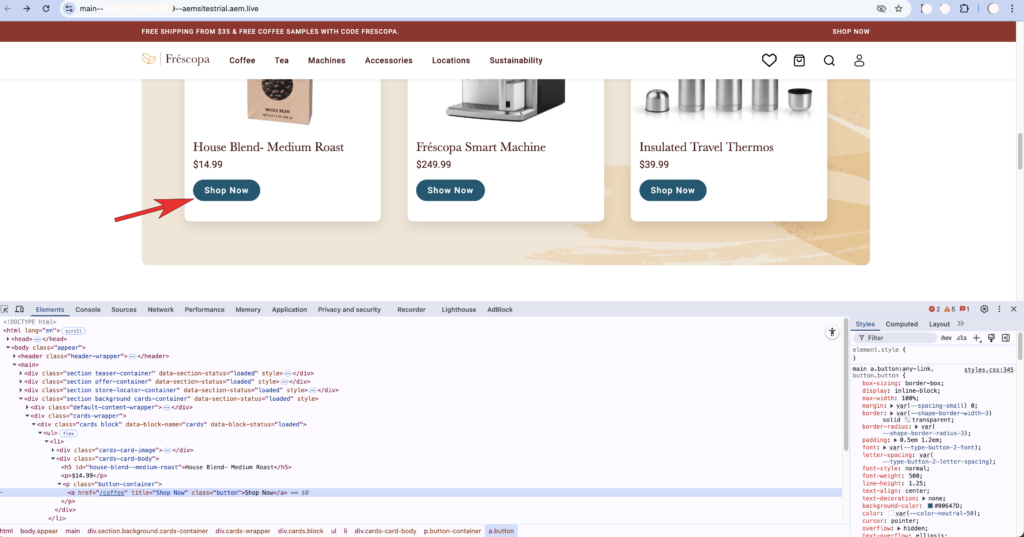
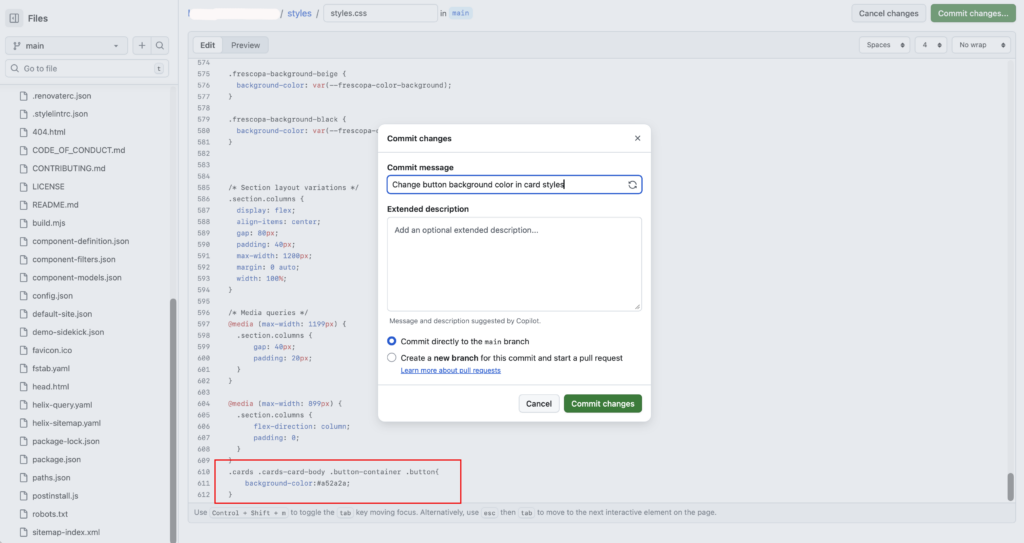
Navigate to https://github.com/aemsitestrial/<yourrepo>/blob/main/styles/styles.css in your repository. Add a CSS class like this towards the end of the file.
.cards .cards-card-body .button-container .button{
    background-color:#a52a2a;
}
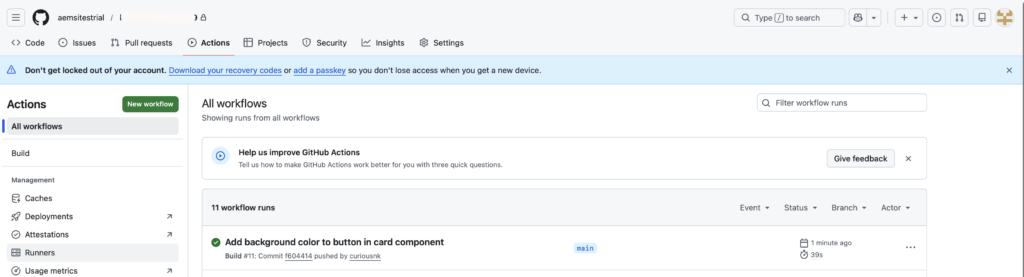
When you commit these changes to the main branch, the Edge Delivery Service picks them up. If you navigate to actions tab in your GitHub repository you would notice action is triggered that would deploy your changes if it passes validation and checks.
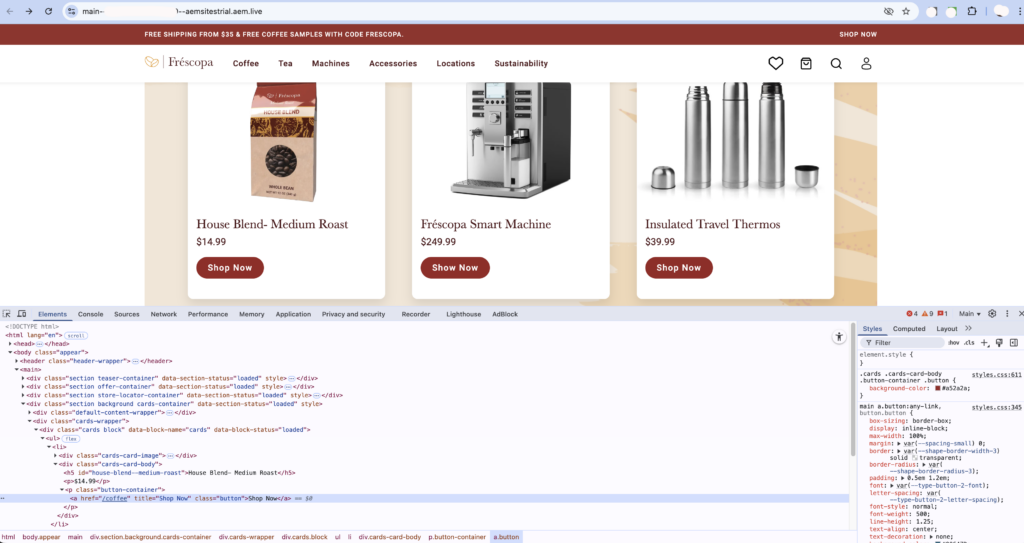
Once deployed you can view the results on your .aem.live URL https://main–<yourrepo>–aemsitestrial.aem.live, which combines your latest code with the content from AEM and CDN cache is purged in the background. (Make sure you clear your browser cache as well)
The Universal Editor provides a true WYSIWYG experience, allowing you to edit content directly on the live-rendered page .
Let’s see this with an example where we will make changes to the banner text in AEM and publish it so that the changes can make it to the Edge Delivery Services live/preview site.
Open the editor in your provisioned AEM Cloud author https://author-p1xxxxx-exxxx.adobeaemcloud.com/ui#/@aemsitestrial/aem/universal-editor/canvas/author-p1xxxxxx-e1xxxxx.adobeaemcloud.com/content/2026/02/<yoursite>/en/index.html and click on the banner heading to edit it.
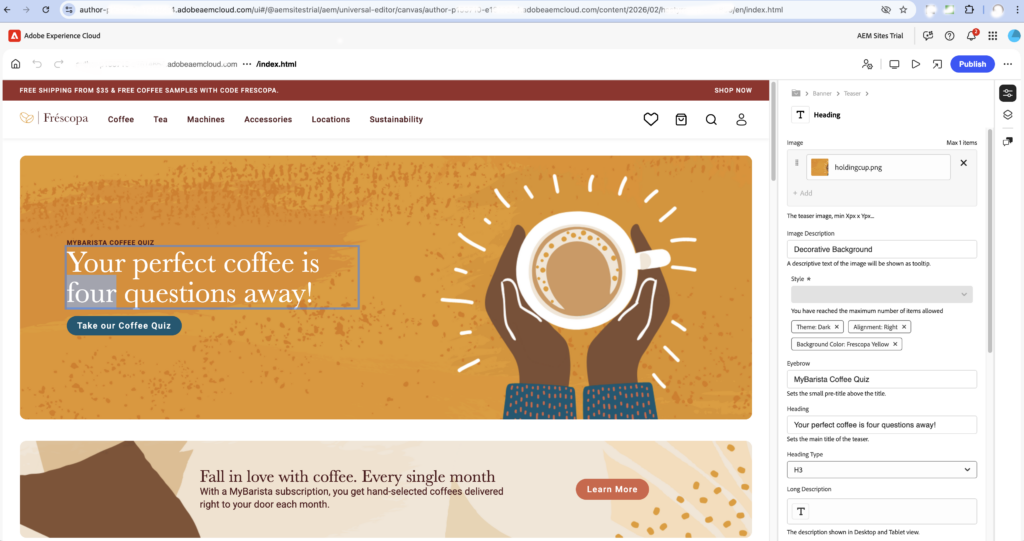
Let’s change the text from ‘four’ to ‘five’, just to see how this works, you can also change something else if you want. Once done, click on publish and you will see option to publish it to preview (.page) or live (.live), I have published it to live website, but in practice you will first test this on preview and then publish it to live. (this also purge the CDN cache in background)
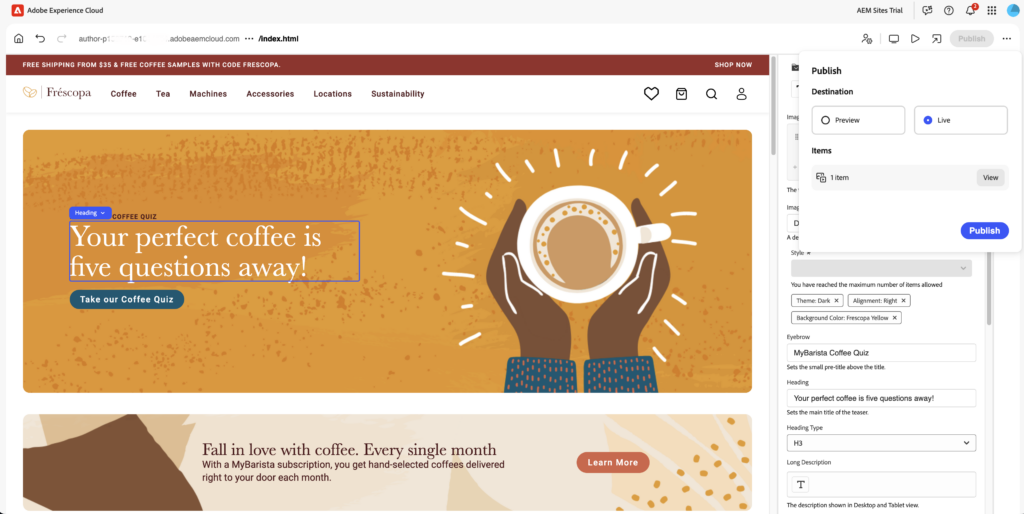
Now navigate to the live page, make sure you also clear your browser cache, Once loaded you will be able to see your changes.

Now that you have seen a basic example, you can try other updates as well—for example, editing text, updating Content Fragments, or adding additional components in the Universal Editor.
As a developer, you can also experiment in the codebase for more advanced scenarios, such as building new blocks or extending existing ones with CSS and JavaScript.
Previously, most developers could only read about Edge Delivery Services and the Universal Editor, or see them through limited demos. This 30-day trial environment lets you explore the workflow without manual setup and without needing an enterprise project upfront.
With this trial, you can:
Why developers should care: Edge Delivery Services (EDS) and Universal Editor are clearly where Adobe is investing for faster delivery and a modern authoring workflow, and this trial is a low-risk way to get practical experience before you have to use it on a real project.
This is a strong opportunity to learn the stack while the environment is available—keep in mind it is deleted after 30 days, so plan your experiments accordingly.
Note: The views and opinions expressed in this post are personal and do not necessarily reflect Adobe or any affiliated organization.