Physical Address
304 North Cardinal St.
Dorchester Center, MA 02124
Physical Address
304 North Cardinal St.
Dorchester Center, MA 02124


Learn how to use AEM Playground (aem.now) to test AEM Agents and AI workflows in a free, 30-day sandbox environment without needing internal IT approvals.
If you want to test new AI workflows in AEM but don’t want to wait for internal security approvals, aem.now (AEM Playground) is the fastest way to start. It’s a safe test environment where you can experiment with new AI capabilities—generate content, optimize sites, and try new AI workflows.
aem.now is Adobe’s free AEM playground environment specifically designed for testing AEM’s AI Agents and new capabilities. Key facts:
In many organizations, enabling AI features in an enterprise environment takes time because security, compliance, and governance teams want reviews and approvals. aem.now helps you learn and experiment first, in a separate sandbox, before you start those internal conversations.
Also, the playground comes with Frescopa, a fictitious demo brand, so you can test typical site workflows without uploading your own company content.
This is the fastest way to get hands-on with features like the Experience Production Agent, Content Optimization Agent, and Discovery Agent without impacting your production setup.
Note: The playground environment is deleted after 30 days.
Go to the AEM Playground page
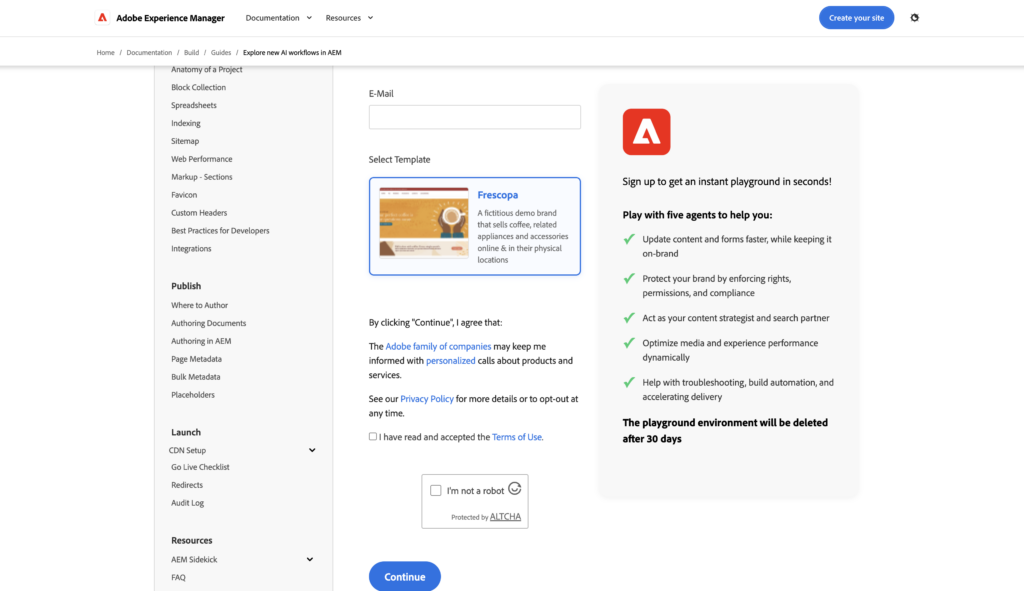
Provide your email, and choose templates between Frescopa (Coffee demo), Commerce, or a Standard project (I would recommend select the Frescopa as it’s fully configured for AI Usecase).
Review the standard Adobe terms and usage policies and click on the continue button. The setup process takes only a few minutes. You can watch the progress flow on your screen as Adobe provisions your instances and content.
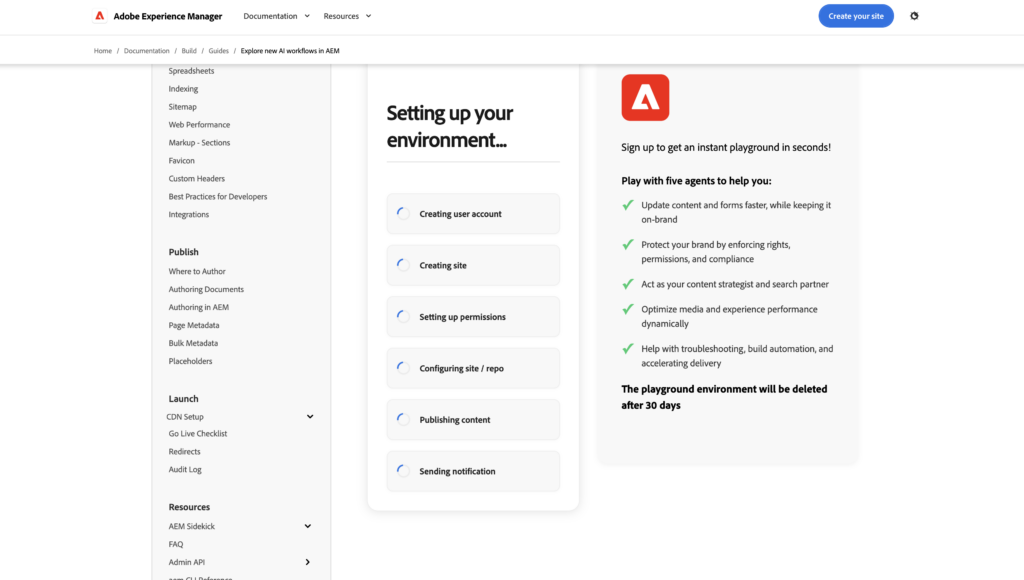
Once the process is complete, Within a few minutes, you will receive an email with your environment details. Bookmark or save these links for ease of access.
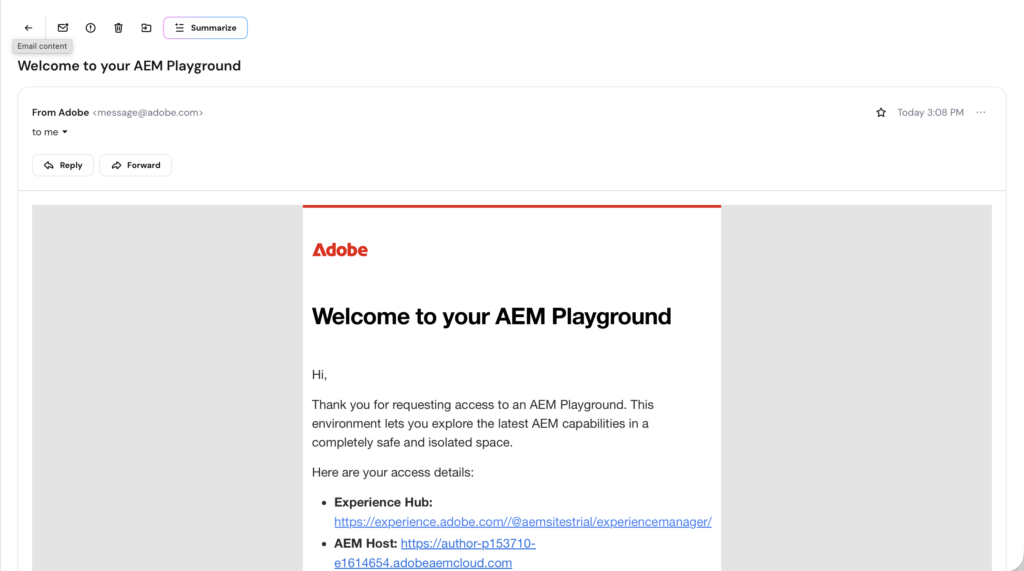
When your environment is ready, you will typically receive four specific types of links in your email that you provided during the signup. Here is what each one does:
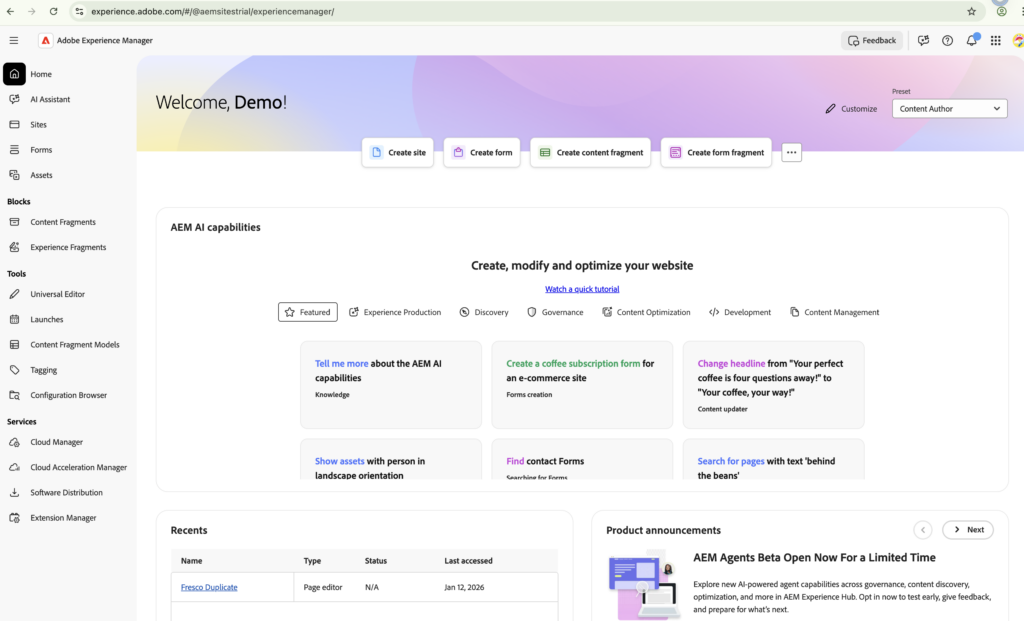
Example: https://experience.adobe.com/#/@aemsitestrial/experiencemanager/
This is the Adobe Experience Cloud shell, which acts as a central entry point to launch Adobe Experience Manager and other Adobe cloud solutions
Example: https://author-pXXXXX-eXXXXX.adobeaemcloud.com
This is where the content creation happens. This is the AEM Authoring interface where you create/edit pages, content fragments, manage assets, and publish them.
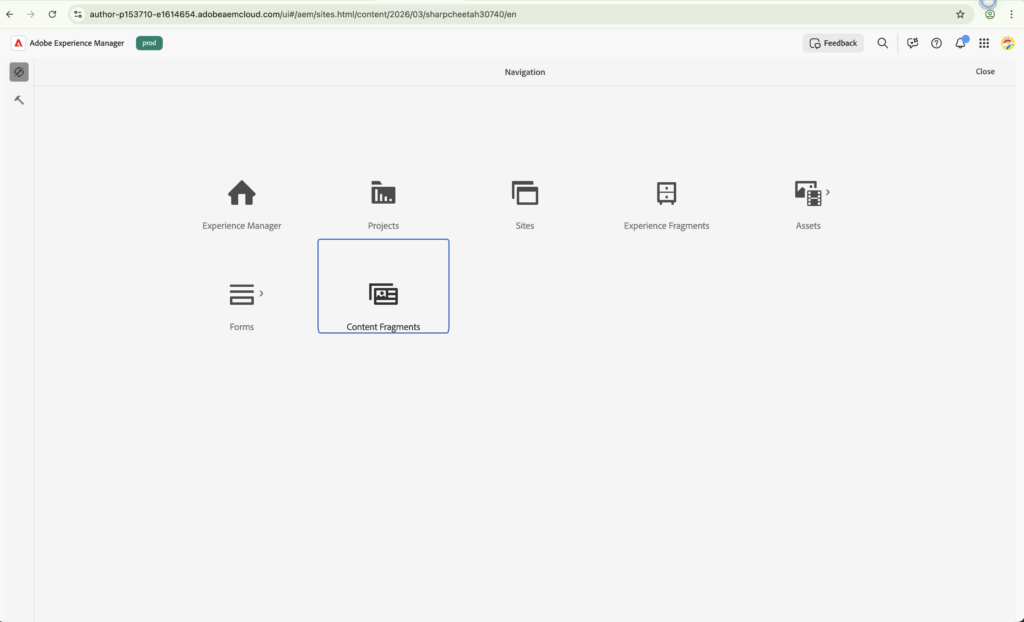
Example: https://main--site--tenant.aem.page
This is your internal “check-point.” Publish your changes to preview and use this URL to see how your content looks after an AEM Agent or you have modified it, but before you make it live. It is intended for internal validation. (Conceptually like a staging environment)
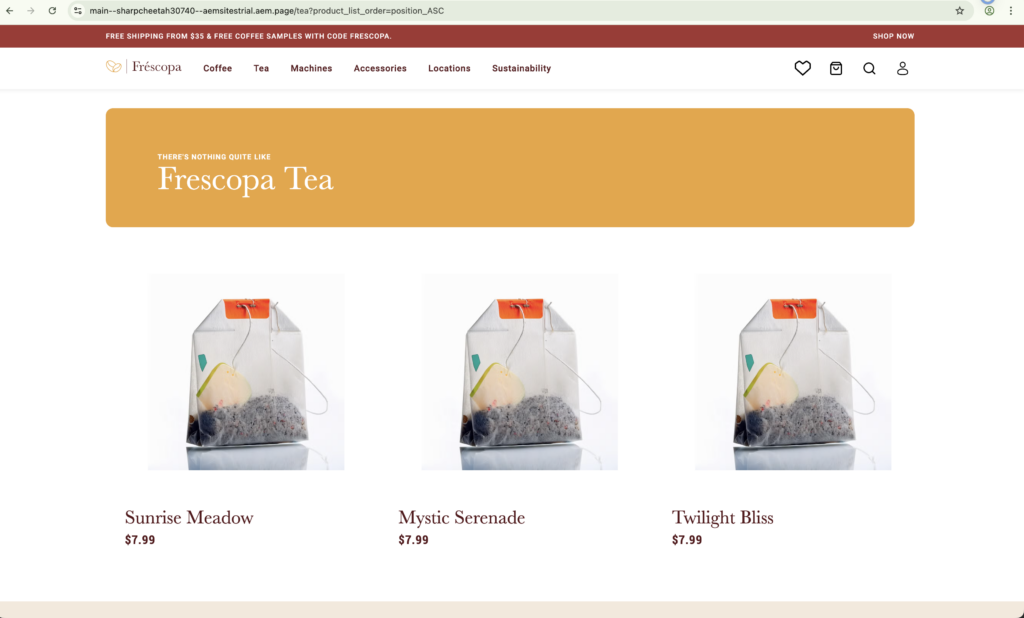
Example: https://main--site--tenant.aem.live
This is the final “public” view. This URL simulates how the content appears to an actual end-user on the web. (Production site)

At this point you should have your playground running and you should understand what each URL is for (Hub, Author, Preview, Live). Use the next 30 days to test the agent-driven workflows listed on the Agents in AEM page (content updates, brand protection, discovery, media optimization, troubleshooting).
When the playground expires (it is deleted after 30 days), hopefully you will have enough clarity to decide whether to request agent enablement for your AEM as a Cloud Service program.